

In the fast-paced world of 2024, email efficiency is more important than ever. Microsoft Outlook remains a popular choice for managing emails, but there are hacks and tricks that can significantly boost your productivity. Let’s explore the top 7 Microsoft Outlook hacks for 2024 that will streamline your email management and communication process:
Key Takeaways
- Automate repetitive tasks with Quick Steps to save time and increase efficiency.
- Prioritize important emails with Focused Inbox to stay organized and focused.
- Master advanced search operators to quickly find specific emails and information.
- Create email templates for common messages to streamline communication.
- Customize rules and alerts to automate email organization and management.
1. Quick Steps Automation
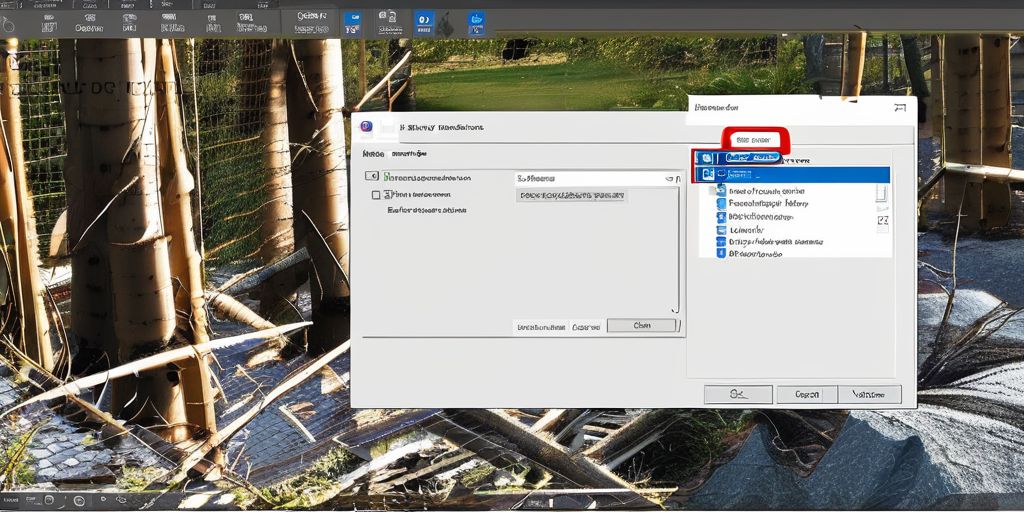
In my quest to conquer email overload, I’ve found that Quick Steps in Microsoft Outlook is a game-changer. Automate repetitive tasks with a single click by setting up Quick Steps for actions you frequently perform. This could be moving emails to a specific folder, sending standard replies, or even creating appointments from messages.
- To set up a Quick Step, simply go to the Home tab and click on the Quick Steps group.
- Choose ‘New Quick Step’ and select the type of action you want to automate.
- Customize it with specific details like the folder destination or standard message text.
Embrace the power of automation to make your email management more efficient and give yourself the gift of time.
Remember, the key to email efficiency is not just about managing your inbox, it’s about transforming it into a productivity hub. With Quick Steps, you’re not just organizing emails; you’re streamlining your entire communication process.
2. Focused Inbox Prioritization
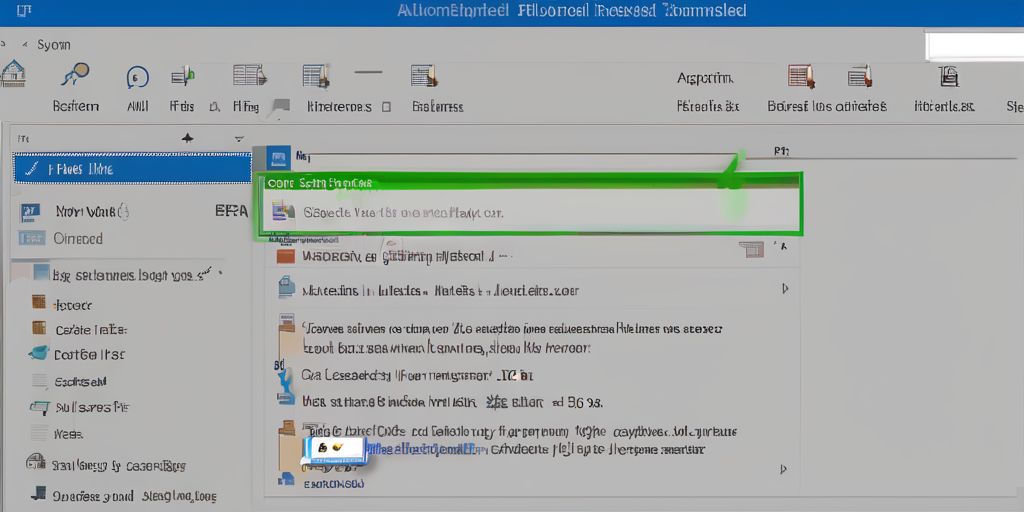
In the ever-growing sea of emails, it’s crucial to keep the waves of less important messages from capsizing your productivity. That’s where Focused Inbox Prioritization comes in. It’s like having a personal assistant who knows exactly what’s important to you.
By automatically filtering out the noise of notifications and newsletters, Focused Inbox ensures that I’m only presented with emails that require my immediate attention. This feature groups messages by sender, making it easier to handle emails in batches and maintain a clean inbox.
With Focused Inbox, I’ve found that I spend less time sifting through emails and more time on what truly matters.
Here’s a quick rundown on how to leverage this feature:
- Step 1: Enable Focused Inbox from the View tab.
- Step 2: Train the tool by marking emails as ‘Focused’ or ‘Other’.
- Step 3: Use the ‘Snooze’ function to defer less urgent emails.
- Step 4: Regularly review your ‘Other’ inbox to ensure nothing slips through the cracks.
3. Advanced Search Operators

When I’m looking to streamline my email search in Outlook, I turn to advanced search operators. These powerful tools help me cut through the clutter and find exactly what I need, fast. Using the right operators can transform a frustrating search into a breeze.
For instance, if I want to find emails from a specific person, I use from: followed by the person’s name. To narrow down to emails with attachments, I add hasattachments:true to my query. Here’s a quick list of some handy operators:
subject:to search within email subjectsreceived:to filter by the date you received an emailcategory:to find emails tagged with a specific category
Remember, combining operators can yield even more precise results. For example, from:John received:last week will show all emails from John received in the past week.
If you’re facing issues with Outlook not indexing your files properly, causing slow or incomplete search results, there are steps you can take to troubleshoot. First, ensure that Outlook’s indexing feature is functioning correctly. This feature is like a catalogue of all your emails, allowing the search to reference this instead of scanning every folder. If you’re on Windows, check the Search Index; for Mac users, use Spotlight to verify the indexing status.
4. Email Templates Creation

Creating email templates is a game-changer for managing my inbox efficiently. With a few clicks, I can send out responses that are consistent and professional, saving me precious time every day. Customizing templates to fit various scenarios is key; it allows me to maintain a personal touch while automating repetitive tasks.
- To start, I select a base template that aligns with the type of message I need to send.
- Next, I personalize the template with specific details relevant to the recipient or situation.
- Finally, I save the template for future use, ensuring quick access when needed.
By investing a little time upfront to create and organize my templates, I’ve significantly reduced the time spent on composing emails.
Remember, the effectiveness of an email template lies in its ability to convey the intended message while still feeling personalized. Whether it’s for a marketing campaign or daily correspondence, the right template can make all the difference.
5. Rules and Alerts Customization
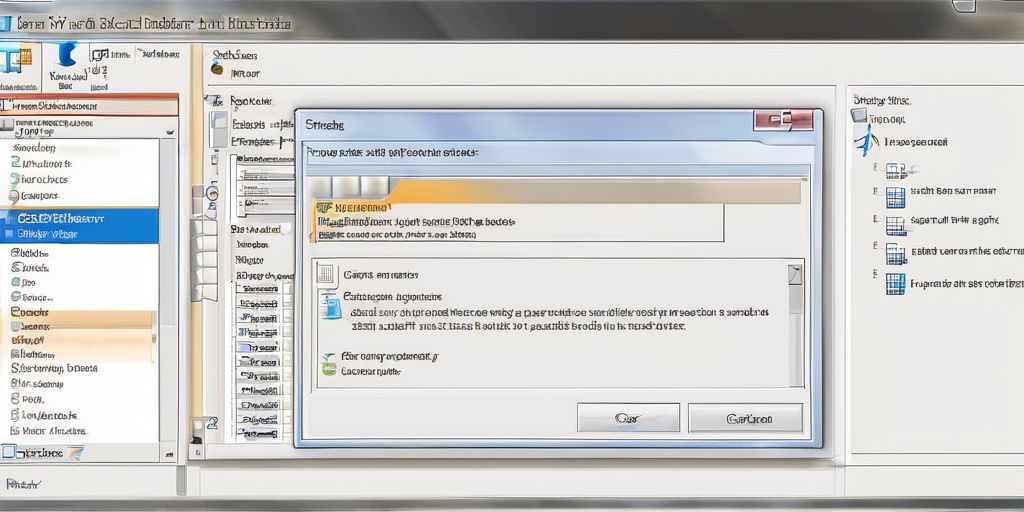
Harnessing the power of Outlook’s Rules and Alerts can be a game-changer for managing your inbox. Automate repetitive tasks and ensure that your email works for you, not the other way around. By setting up rules, you can automatically sort emails into folders, flag messages from key contacts, or even delete unwanted spam before it clutters your inbox.
With a few clicks, you can transform a chaotic email experience into a streamlined workflow that aligns with your priorities.
Here’s a simple way to start:
- Go to the ‘Rules’ section in your Outlook settings.
- Choose ‘New Rule’ and select a template or start from a blank rule.
- Define the conditions that trigger the rule.
- Specify the action that should occur when the conditions are met.
- Name your rule and activate it.
Remember, the goal is to make your email work smarter, not harder. Take the time to refine your rules and alerts, and watch as your productivity soars.
6. Time Zone Management
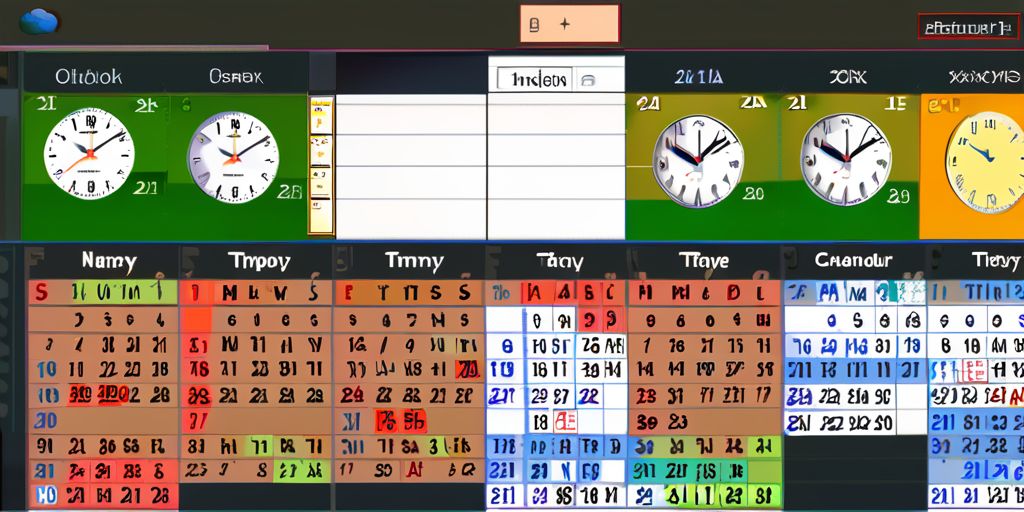
Dealing with different time zones can be a real headache, especially when scheduling meetings with international colleagues. Outlook’s Time Zone feature is a lifesaver for me. It allows me to view and schedule appointments in any time zone, ensuring everyone is on the same page.
To make the most of this feature, always check the time zone of your recipients before sending out meeting invites.
Here’s a simple way to manage time zones effectively:
- Start by opening the meeting request.
- Click on ‘Time Zones’ next to the start and end time fields.
- Select the appropriate time zone for the meeting.
This small step can prevent confusion and ensure that all participants are aware of the correct meeting time. Remember, clear communication is key in remote work and being considerate of others’ time zones reflects professionalism and thoughtfulness.
7. OneNote Integration
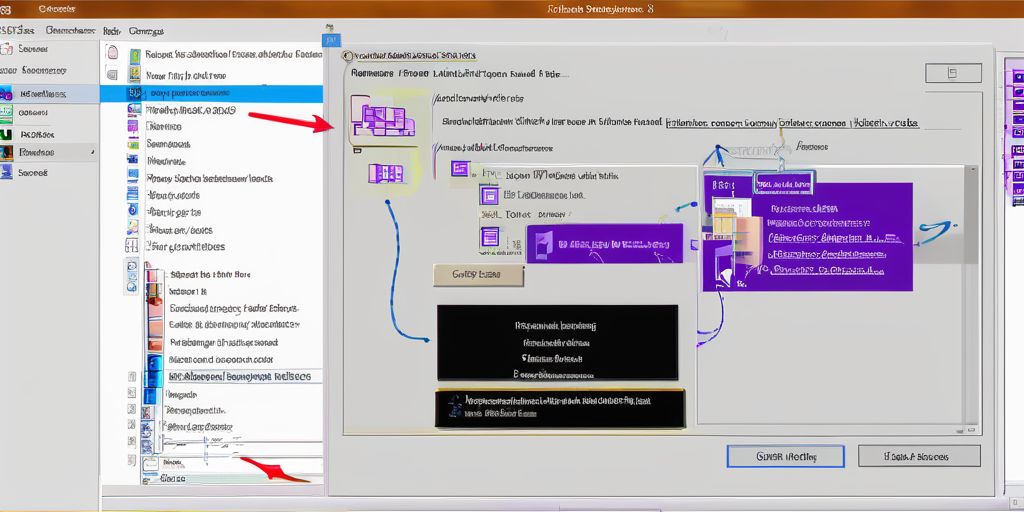
Integrating Microsoft Outlook with OneNote has been a game-changer for my productivity. With this powerful combination, I can easily transfer important emails directly into OneNote, where I can annotate, organize, and share them with my team. This seamless integration ensures that no critical information slips through the cracks.
OneNote becomes an extension of my Outlook, allowing me to create a more dynamic workspace. Here’s how I streamline my workflow with OneNote integration:
- Email Clipping: Quickly send emails from Outlook to OneNote with just a couple of clicks.
- Meeting Notes: Automatically create a OneNote page linked to the Outlook calendar event for meeting details and notes.
- Task Management: Convert action items from emails into OneNote tasks that can sync back to Outlook.
By leveraging the integration of OneNote, I’ve found a significant improvement in how I manage information and collaborate with colleagues. It’s like having a digital assistant that keeps all my notes and emails perfectly aligned.
Conclusion
In conclusion, mastering these top 7 Microsoft Outlook hacks for 2024 can significantly boost your email efficiency and productivity. From organizing your inbox to automating tasks, these hacks offer smart solutions to common email management challenges. By implementing these strategies, you can streamline your email workflow and save valuable time. Stay ahead of the game with these Outlook hacks and make your email experience smoother and more efficient in the year ahead.
Frequently Asked Questions
How can I automate email tasks in Microsoft Outlook?
You can automate email tasks in Microsoft Outlook using the Quick Steps feature. This feature allows you to create custom automated actions for common tasks, such as forwarding emails, moving them to specific folders, or replying with a template.
What is Focused Inbox in Microsoft Outlook?
Focused Inbox in Microsoft Outlook prioritizes important emails in a separate tab, helping you focus on essential messages and reducing clutter in your inbox. It uses AI to learn your email behavior and preferences.
How can I use advanced search operators in Microsoft Outlook?
You can use advanced search operators in Microsoft Outlook to refine your search queries and find specific emails quickly. Operators like ‘from:’, ‘subject:’, ‘hasattachment:’, and ‘received:’ can help you narrow down search results.
How do I create email templates in Microsoft Outlook?
You can create email templates in Microsoft Outlook by composing a new email with the content you want to save as a template, then saving it as an Outlook template file (.oft). You can then reuse this template for future emails.
What customization options are available for rules and alerts in Microsoft Outlook?
In Microsoft Outlook, you can customize rules and alerts to automate actions based on specific criteria. You can set rules to move emails to folders, flag them for follow-up, or forward them to another address. Alerts can notify you when certain conditions are met.
How can I manage time zones in Microsoft Outlook?
You can manage time zones in Microsoft Outlook by setting your current time zone in the calendar settings. This allows you to schedule appointments and meetings accurately across different time zones, avoiding confusion and scheduling conflicts.
How does OneNote integration enhance Microsoft Outlook productivity?
OneNote integration in Microsoft Outlook allows you to easily capture and organize information from emails, meetings, and tasks into your OneNote notebooks. This integration streamlines note-taking and information management, improving overall productivity.
Can I use Microsoft Outlook on multiple devices simultaneously?
Yes, you can use Microsoft Outlook on multiple devices simultaneously by syncing your Outlook account across devices. Changes made on one device, such as reading or deleting emails, will be reflected on all devices connected to the same account.
Leave a Reply